
Three quick tweaks (one's in Accessibility) that stop battery drain, lag spikes, and accidental IAPs in casual mobile games.
Turn off haptics, keep the good kind of feedback
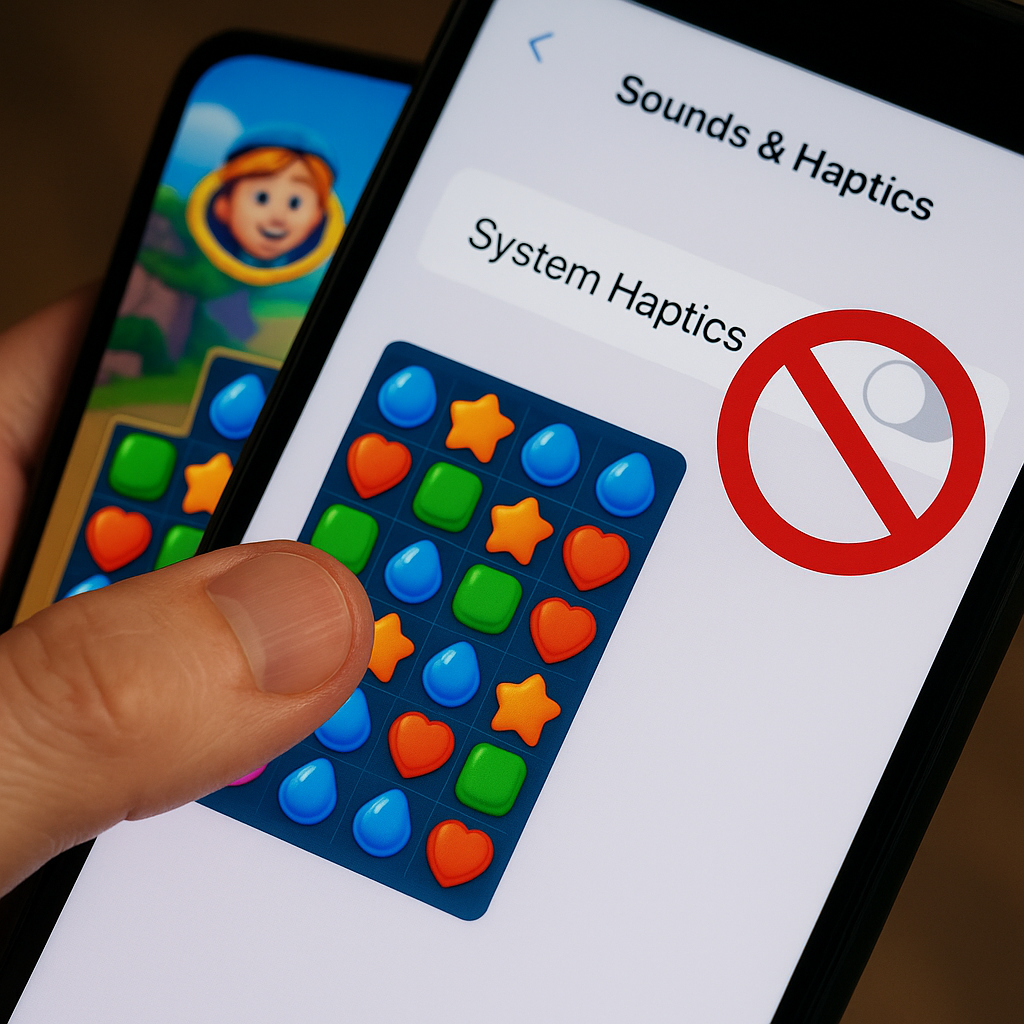
Somewhere along the way, casual mobile games decided every swipe should feel like a tiny victory parade. Cute for five minutes, and then your phone starts warming up like it's running a benchmark, especially if you're on an older iPhone or a midrange Android. The fix is boring, but it works: kill the vibration spam and keep the parts that help you play.
On iOS, I start in Settings > Sounds & Haptics. Turn off System Haptics and then open the game itself to see if it has its own Haptics toggle (a lot of them do, usually buried in a gear icon). On Android, the path varies by skin, but it's usually Settings > Sound & vibration, then dial down touch vibration, and again, check the game's own settings.
Why I bother: haptics can create micro-stutters in some games when the phone is already juggling a lot, like an ad SDK loading, a particle-heavy animation, and music. You feel it as that tiny hitch right when you're trying to chain combos in a match-3 or hit the timing window in a rhythm runner. Turning haptics off won't magically give you 120 fps, but it cuts one more background job that doesn't help you win.
If you do like feedback, keep sound on and drop effects volume instead of muting everything. I run music at about 20% and effects around 40% so I still hear the important cues (the "combo ended" sound, the "enemy spawned" ping) without turning my living room into a slot machine. The first time you play a level in silence and notice your phone stays cooler, you'll get why this one stays in my pre-game checklist.
Use Guided Access (or App Pinning) to stop accidental taps
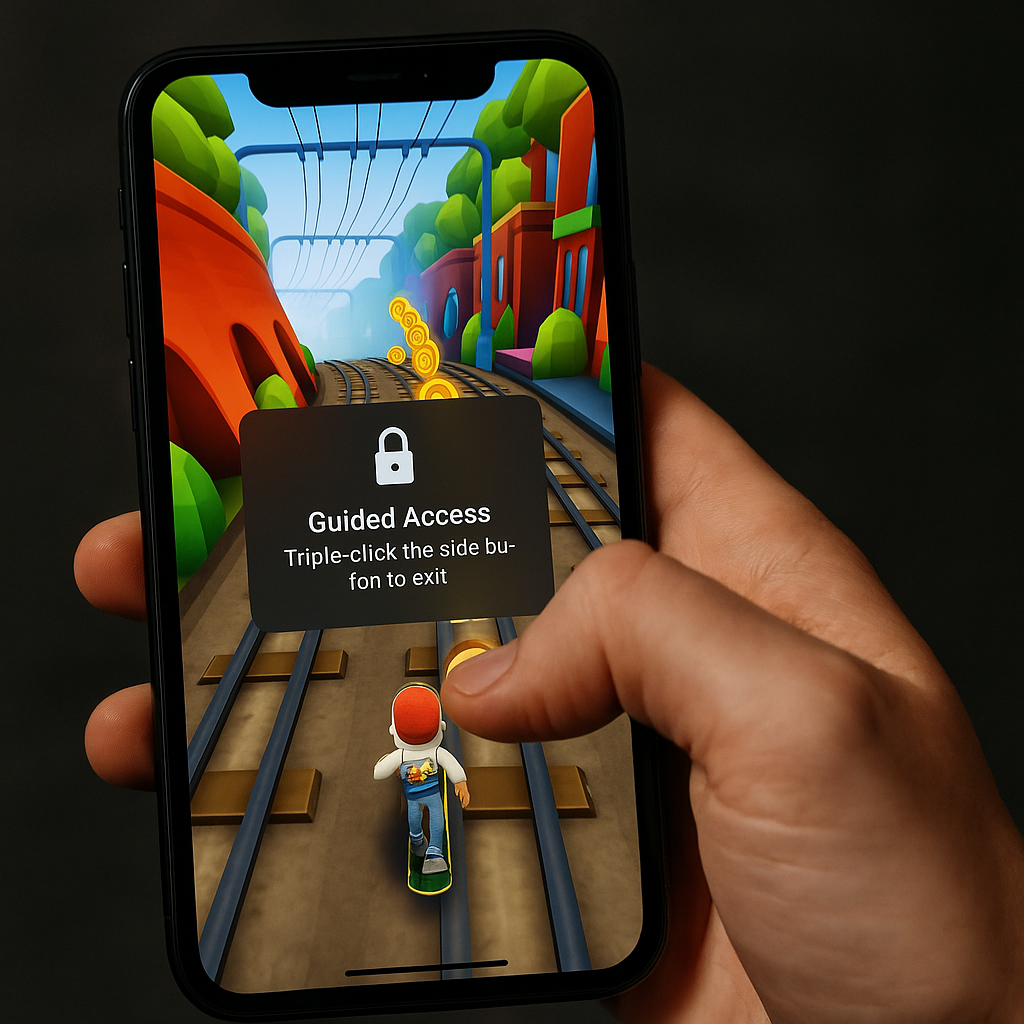
This is the least glamorous trick I use, and it's the one I miss immediately when I forget it. You're mid-run, your thumb drifts, and suddenly you've swiped up to the Home screen, pulled Notification Center down, or fat-fingered an on-screen coin pack you absolutely did not intend to buy. Mobile games love to put the shop button exactly where your hand naturally lands.
On iPhone, the answer is Guided Access. Go to Settings > Accessibility > Guided Access and turn it on. Set a passcode you'll remember. Then, when you're in a game, triple-click the side button to start it. My personal move is to tap Options and disable the bits that ruin a session: I usually turn off Motion (so rotating the phone doesn't do anything weird) and sometimes Volume Buttons if a game uses them in an annoying way. If there are specific dead zones on-screen (like a corner with an ad badge you keep hitting), you can even draw a circle to ignore touches in that area. It feels like cheating, but it's really just giving your thumbs a guardrail.
On Android, use Screen Pinning (often called App Pinning). It's usually in Settings > Security or Settings > Security & privacy. Once it's on, open the game, go to the app switcher, tap the app icon above the preview, and pin it. Now your phone won't bounce you out of the game because you brushed the gesture bar at the wrong time.
When this pays off is not in a perfect, quiet play session. It's when you're on a couch with one hand holding a drink, or lying in bed and your phone slips, or you're playing something like Subway Surfers where your finger is already doing frantic vertical swipes. You stop losing runs to the operating system. Also, if you have kids who grab your phone "just to watch," this is how you keep them from exploring your entire device through the back button like it's a quest line.
Cap the frame rate before your phone cooks itself
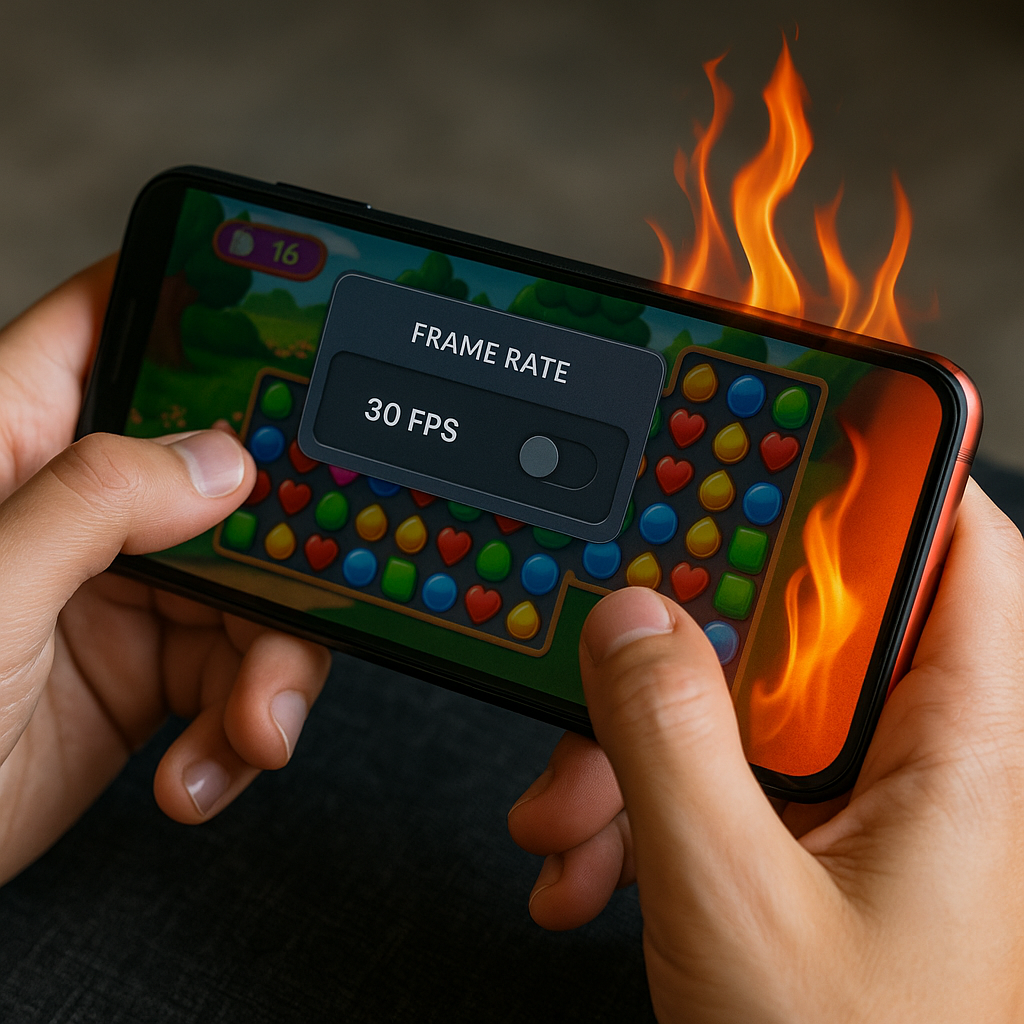
A lot of casual games will happily run as fast as your phone lets them. If you're on a 120 Hz screen, some titles will sprint, even when there's no gameplay benefit. It looks slick, then you notice the back of the phone getting toasty, the battery percentage falling like a sand timer, and the game getting weirdly less stable after ten minutes. Heat is the silent run-killer. It causes throttling, throttling causes frame dips, and frame dips make you miss inputs. I've watched this happen in real time in everything from endless runners to gacha-heavy "idle" games that are somehow not idle at all.
First stop: the game's own settings. Many have a toggle for 30 fps, 60 fps, or "High". Pick 60 or even 30 for anything that's mostly tapping and dragging. If it's a match-3, 30 fps is fine. Your brain adjusts in about two levels, and your battery thanks you for the rest of the evening.
If the game doesn't give you a frame-rate option, use OS-level levers. On iOS, Low Power Mode (Settings > Battery) often limits background activity and can indirectly tame the worst offenders. It's not a precise fps cap, but it stops some games from going full-tilt while also fetching notifications, syncing photos, and doing whatever else your phone is up to. On Android, Battery Saver can do the same, and some phones (Samsung's Game Booster, for example) have a dedicated Game optimization screen where you can bias toward battery or performance.
The hands-on tell that you're over-rendering is simple: you start seeing stutters after the phone gets warm, not at the beginning. If your first round is smooth and your third round feels sticky, that's heat and throttling, not your reflexes falling apart. I keep a 60 fps cap on anything I play longer than a commute, and I only uncap for the rare mobile game where timing windows are tight and the phone stays cool. Most nights, I want consistent inputs more than bragging rights.