
These three offline-friendly setups keep ads out, saves in sync, and your battery out of the red.
Turn Airplane Mode Into a Power-Up
I do this before I get even a little attached to a mobile game: I download it on Wi‑Fi, open it once, then flip Airplane Mode on and try to play for five minutes. Not "tap the start screen" play. I mean: load a level, finish it, claim rewards, and move to the next thing without the app throwing a tantrum.
Here is what I look for in the first minute. If it hangs on a spinner that says "Checking connection" or it kicks me to a store page, I uninstall. If it loads but constantly flashes a banner like "No internet" and blocks buttons, I uninstall. The good ones just keep going, and you almost forget the phone is offline. Alto's Odyssey is still my favorite for this test because it behaves like a paid game even when it isn't. Mini Metro is another one that stays calm offline, and it doesn't secretly drain your battery in the background while you "wait" for something.
On iOS, I also check Settings > Cellular and toggle the game's cellular data off. That way, when I forget to switch Airplane Mode back later, the game won't chew through my monthly data plan during a commute. On Android, it's usually Settings > Apps > (game) > Mobile data & Wi‑Fi, then disable background data if the option exists. The payoff is boring but huge: fewer ads, fewer surprise popups, and your battery doesn't get roasted by a game repeatedly phoning home for analytics while you're just trying to kill time in line.
Make One Folder: "No Ads, No Waiting"
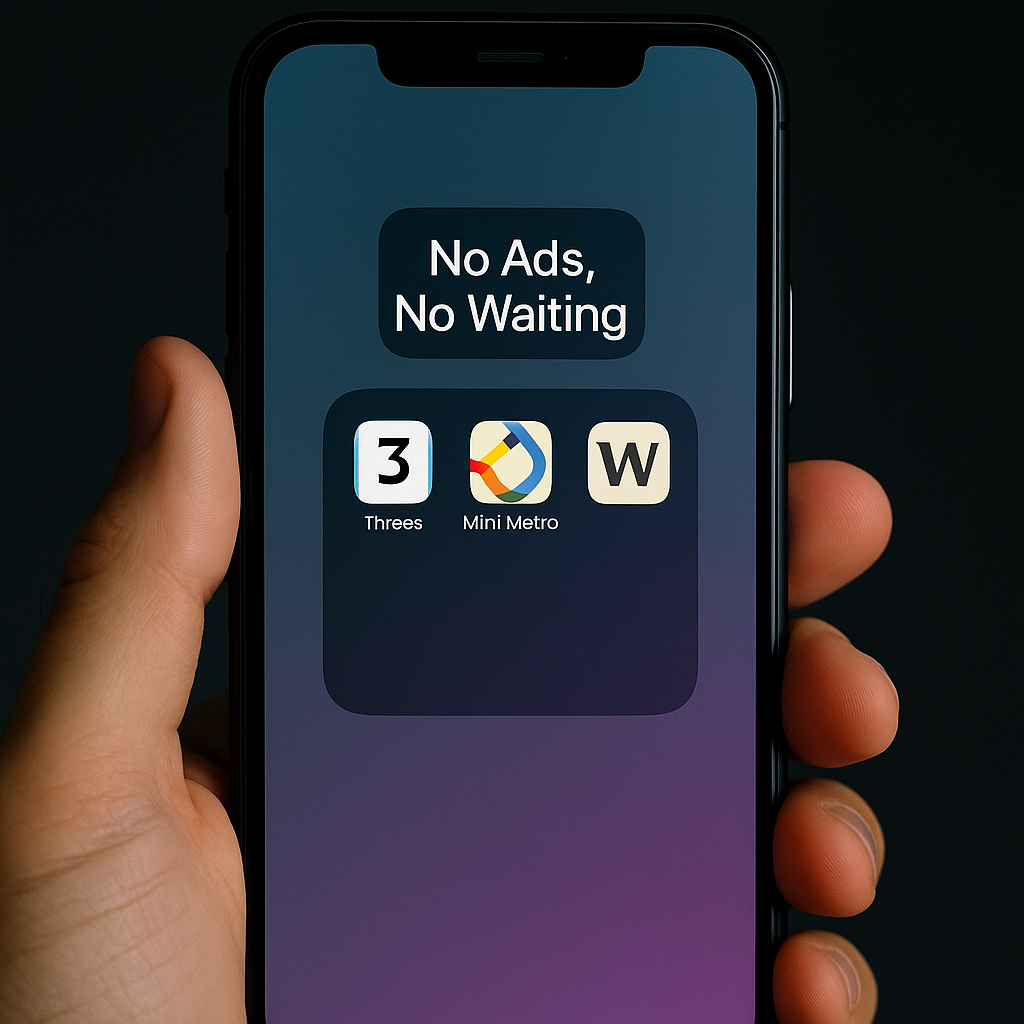
I got sick of the same cycle: I delete a game to free up space for photos, then two weeks later I'm in a waiting room, bored, and I download whatever's top of the charts. Half the time it's an ad farm with a cute icon. So I keep a single folder on my first home screen called "No Ads, No Waiting." It's my short list of games that behave, and it stops me from panic-installing nonsense.
The folder has three rules. One: it has to start instantly. If the app needs a patch, a "resource download," or a daily login screen that takes 20 seconds, it doesn't live in this folder. Two: it can't be pushy about IAP the second you miss a move. Three: it can't require a constant connection just to function. In practice, that means I end up keeping things like Threes!, Mini Metro, and a clean word game that doesn't require an account to play. If you love Netflix's mobile games, those are usually great on ads, but they do require sign-in, so I keep them in a separate "Wi‑Fi" folder because hotel logins and spotty LTE can turn "quick game" into "password reset."
Once a month, I open Screen Time (iOS) or Digital Wellbeing (Android) and check which games ate the most minutes. If one game is living off notifications and FOMO, it gets kicked out of the folder. This is also where I catch sneaky battery hogs: if a casual game shows up high in Battery settings and I barely played it, it's doing something in the background. Delete. The folder isn't about being virtuous. It's just a way to make the next bored moment easy and predictable, instead of letting the app store decide what I play.
Cloud Saves: Set Them Up Before You Care
I've lost a mobile save exactly once in a way that hurt, and now I'm annoying about it. It was a puzzle game with a long campaign, and when I upgraded my phone, my progress didn't come along. The developer's support email basically said, "Sorry." That's the whole reason I set up cloud saves before I care about a game.
On Android, that usually means making sure Google Play Games is installed and signed in, then checking the game's settings for "Cloud Save" or "Sign in." Some games silently tie saves to your Google account; others want an explicit toggle. On iOS, it can be Game Center (Settings > Game Center, then sign in), or iCloud Drive permissions for the app (Settings > Apple Account > iCloud > Apps Using iCloud). The trick is to test the save, not just assume it's fine because a green checkmark appeared.
My quick test looks like this: play until something measurable happens (finish a level, earn a badge, unlock a character), then fully close the app. On iOS, I open the app switcher and swipe it away. On Android, I use the recents screen and dismiss it. Then I toggle Wi‑Fi off and reopen the game. If it can't load anything without a connection, that tells me the "save" is really server-dependent. Finally, I turn Wi‑Fi back on and see if it reconciles progress without duplicating currencies or rolling back. I've watched games do weird stuff here: coins reset, achievements pop twice, or the app decides my "offline" session never happened. Better to learn that in the first 10 minutes than after a month.
If you're juggling a phone and a tablet, this matters even more. A lot of casual games say "sync" but behave like two separate universes. When you find one that truly mirrors across devices, keep it, and maybe consider paying the one-time "remove ads" IAP if it's offered. Not as a moral stance, just as insurance that the game can afford to keep its save system from turning into confetti.