
A DNS swap, a phone audio tweak, and one router setting that keeps my party chat clean.
Swap your DNS once, then stop babysitting matchmaking
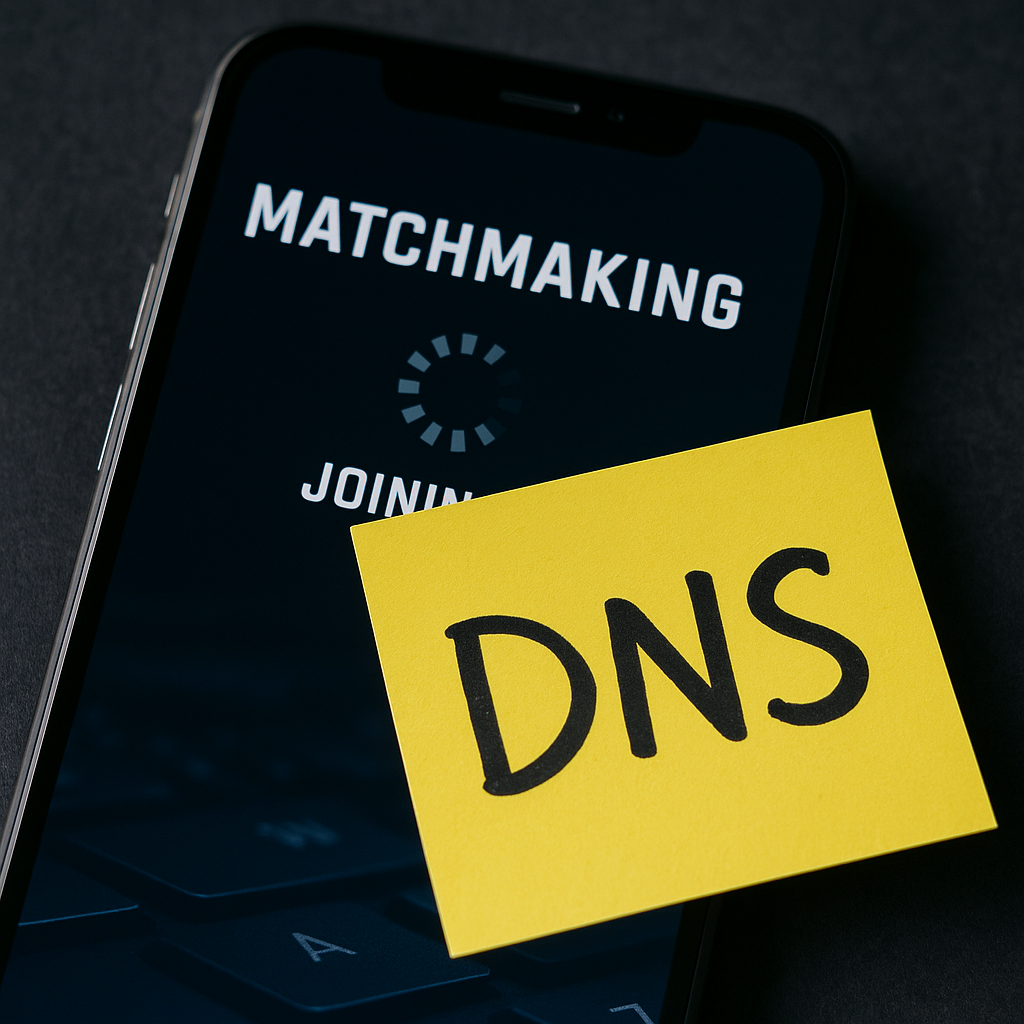
I used to treat DNS like one of those nerdy internet arguments that never touches a match. Then I noticed a pattern on my phone: lobby loads, party joins, and everything looks normal, but the first minute of a game has that tiny delay where hit markers feel late and opponents are suddenly behind you. Not constant lag, more like the connection is taking the scenic route right when the session spins up. On mobile, especially on hotel Wi-Fi or a friend’s router that’s been “set and forget” for five years, DNS resolution can be the slow, weird hitch that makes matchmaking feel cursed.
The fix is boring and it sticks: change your DNS on the phone (or on the router if you control it) to something stable like Google Public DNS (8.8.8.8 and 8.8.4.4) or Cloudflare (1.1.1.1). On iPhone, I do it per Wi‑Fi network: Settings > Wi‑Fi > tap the (i) > Configure DNS > Manual. On Android, it’s usually under Private DNS (Settings > Network & internet) where you can set a provider hostname like dns.google or 1dot1dot1dot1.cloudflare-dns.com. I test it the lazy way: leave the game fully closed, flip airplane mode on and off, then launch and join a party. If the “joining…” spinner doesn’t hang and my first match doesn’t have that rubbery feel, I’m done.
Two notes from doing this too many times. First, don’t stack a random VPN on top “for better ping.” Most VPNs add latency and make voice chat flakier. Second, if your game has region selection, set it before you blame DNS. DNS won’t save you from accidentally queuing into a server across the country at 1 a.m.
Turn off phone noise processing (it mangles party comms)
Here’s the thing nobody tells you about mobile party chat: the game can be perfect and your comms can still be trash because your phone is “enhancing” your mic. I’ve had nights where my ping is fine, frames are stable, and I’m still getting hit with, “Say that again?” every other callout. The culprit was voice noise suppression and echo cancellation features fighting with my earbuds and the game’s own voice processing. It’s worse in loud spaces (kitchen fan, AC unit, car ride) because the algorithm keeps deciding your voice is background noise and clamps it down.
On Pixel, the big one is Clear Calling / noise reduction features that can kick in during voice apps. On Samsung, there’s often a “Voice focus” or “Noise reduction” toggle during calls, and some models apply similar processing to voice apps depending on your audio route. If you use Bluetooth earbuds (AirPods, Galaxy Buds, cheap Amazon ones), the mic quality is already limited, and then the phone tries to clean it up and you end up sounding like a robot.
My quick, repeatable routine before I hop into ranked: I join a Discord voice channel with one friend first, talk for ten seconds, then switch the same headset into the game’s party voice. If my consonants disappear (t’s and k’s) or my voice “pumps” in and out, I go hunting for suppression. Sometimes it’s in the OS accessibility/audio settings. Sometimes it’s inside the game: toggles like “Voice Chat Noise Suppression,” “Auto Gain Control,” or “Echo Cancellation.” I don’t leave everything on. I pick one layer to do the work, and usually that’s the app, not the phone.
The tell that you’ve fixed it is simple: your squad stops asking you to repeat loot numbers and rotations. It’s not glamorous, but clean comms win fights you never should’ve won. Also, if you’re the one who can’t understand everyone else, flip “Voice Chat Output” between speaker and headset. I’ve had a game randomly route the mix wrong after a call notification, and suddenly everyone sounded like they were in a shoebox.
QoS for one device: the router setting that stops spikes
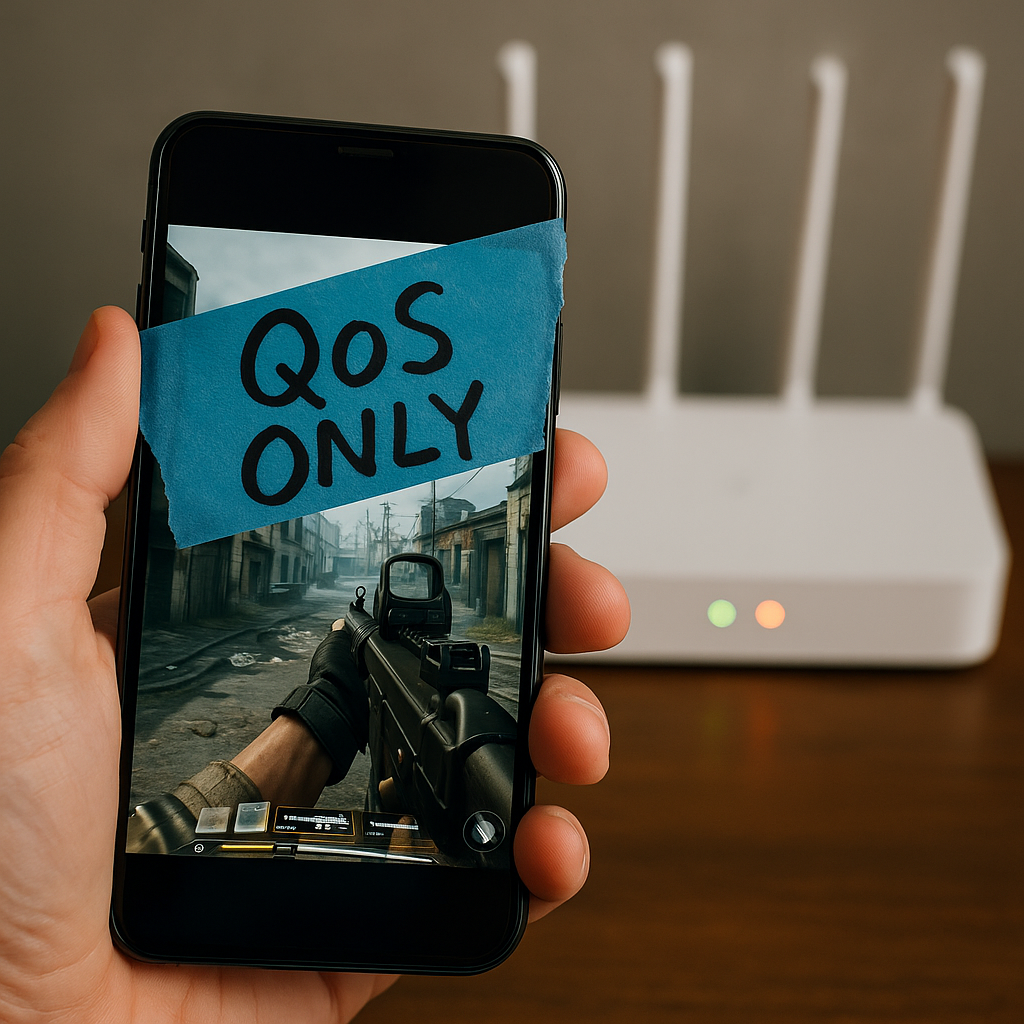
I’m not trying to be the person who storms into the living room and announces a “no streaming during my match” policy. I just want my phone to stop getting bullied off the network every time someone starts a 4K video or a console decides it’s patch time. The cleanest fix I’ve found is router-level QoS, not in the vague “gaming mode” sense, but in the boring, specific “prioritize this device” sense.
If you’ve got a router with decent controls (Eero, Google Nest WiFi, ASUS, TP-Link, or something like UniFi), look for QoS, device priority, or “traffic management.” The goal is to give your phone (or tablet) high priority for a short window, or permanently if you’re the main competitive player in the house. On Eero, it’s literally “Optimize for Conferencing and Gaming.” On ASUS, Adaptive QoS lets you prioritize gaming traffic, and you can also pick your device. On UniFi, Smart Queues with the right bandwidth values does a shockingly good job at smoothing out bufferbloat, which is the ugly cousin of lag spikes.
Here’s how I do it without turning it into a weekend project. First, I run one match with QoS off and I watch the in-game network graph if it has one (Call of Duty: Mobile and Fortnite both have indicators). I’m looking for a pattern: steady ping, then random 200 ms jumps during fights or when the match gets busy. Then I enable QoS and, if the router asks, I set my real internet speeds. Don’t lie and type the ISP’s advertised number. Use a speed test once, then enter something close to what you actually get, especially upload. QoS can’t manage a pipe if you tell it the pipe is bigger than it is.
Finally, I prioritize the exact device I’m playing on, not “gaming” as a category. That way, the router doesn’t decide the Xbox in the other room deserves the crown. When it’s working, the match feels boring in the best way. Party chat stays clean, inputs feel consistent, and the only thing I’m yelling about is my own aim.